Before you start
- What goes in
- A packaging task: create a structure, calculate a size, check a supplier drawing, produce a code or try a mockup.
- What comes out
- A focused calculation, preview or downloadable asset, with a route into the editor for the complete package.
A practical example
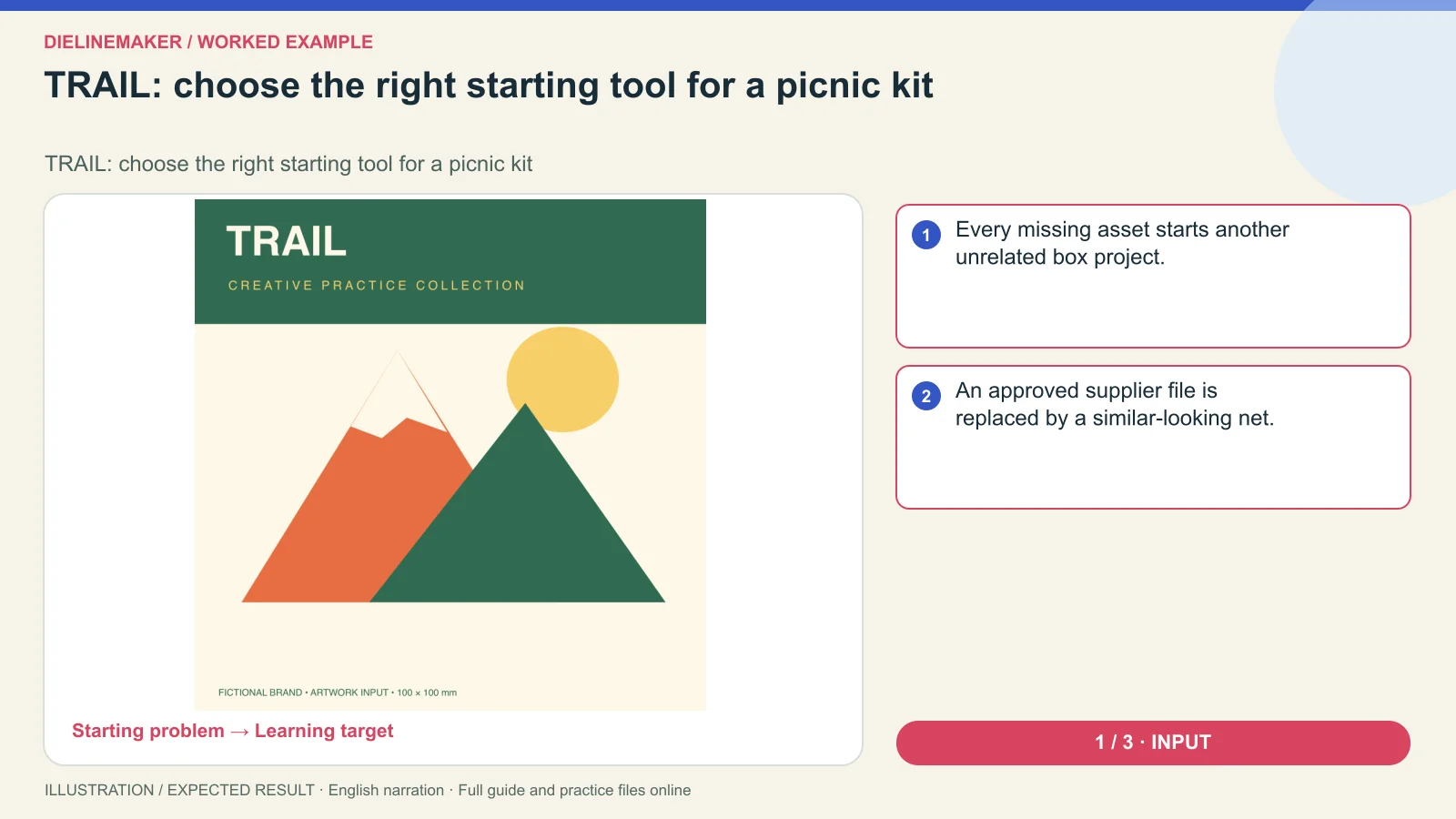
TRAIL: choose the right starting tool for a picnic kit
A fictional outdoor brand needs a picnic-kit carton, an internal part label and a recipe QR. Route each missing input to the appropriate free tool rather than treating every task as a new packaging design.
Try the example files
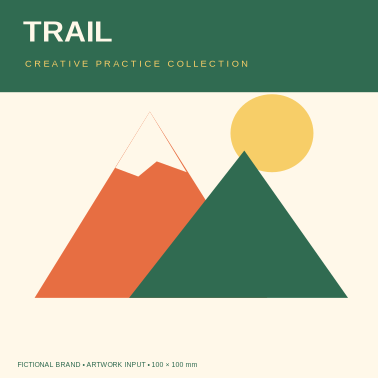
TRAIL SVG practice artworkCreative practice input for this guide.Worked-example worksheet (JSON)Exercise settings and verification checklist for this guide.Before-and-after concept illustration (SVG)Illustrated concept comparison, not an application export.Download this example’s transcriptChaptered English narration for this specific worked example.A separate exercise for this guide
TRAIL: choose the right starting tool for a picnic kit
A fictional outdoor brand needs a picnic-kit carton, an internal part label and a recipe QR. Route each missing input to the appropriate free tool rather than treating every task as a new packaging design.
Prepare these inputs
- Product measurements for a new kit box.
- An internal stock value TRAIL-KIT-042 and a maintainable recipe destination.
- A supplier SVG if an approved structure already exists.
Settings to try and what changes
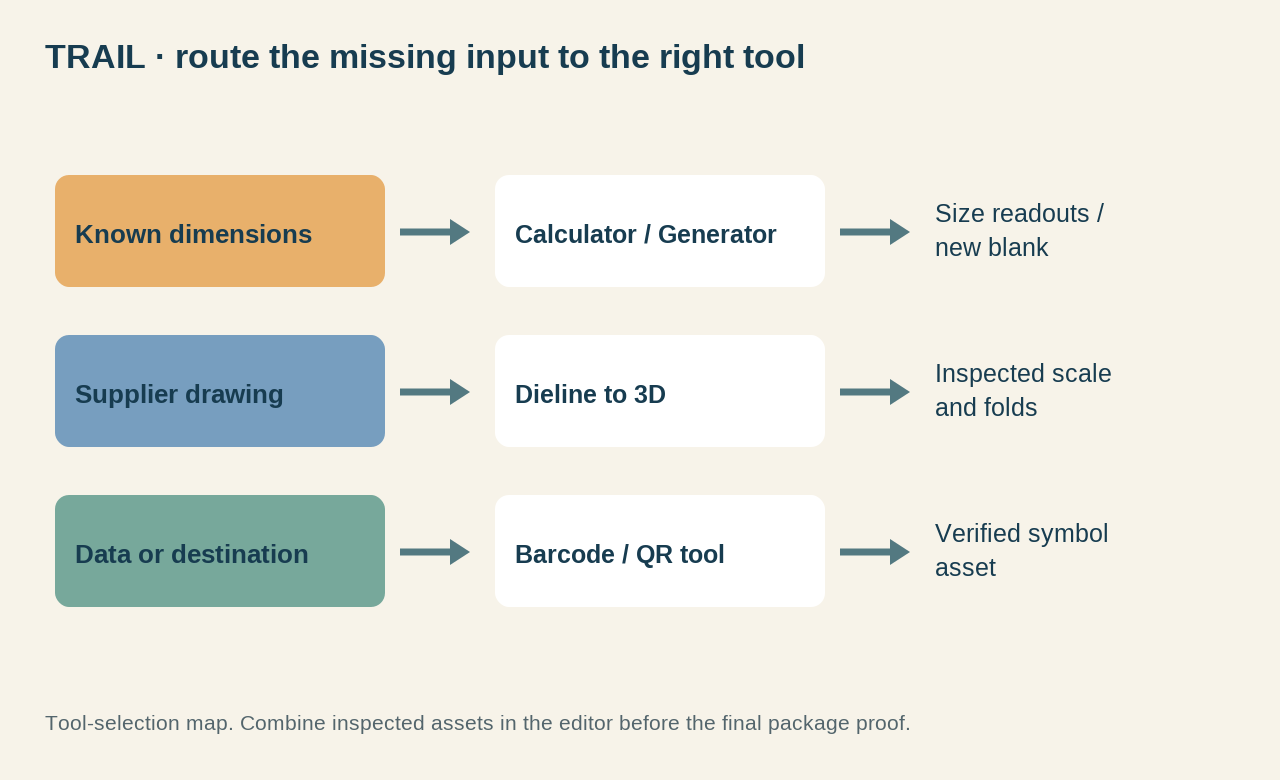
Box size calculator / Dieline generator
Use for numeric fit and a new parametric blank
Calculator questions begin with a known dimension reference; generator questions begin with a suitable structure and size.
Dieline to 3D
Use when geometry already comes from a supplier
Inspect the imported file’s scale and cut/crease interpretation instead of replacing an approved drawing with a visually similar template.
Barcode / QR
Choose symbol type by the receiving task
An internal Code 128 value is different from a retail GTIN; a QR payload is an action or content, not a box geometry.
Packaging mockup
Explore provided sample shapes, then continue for your brand
A sample PNG communicates the selected sample appearance. Adding your own artwork belongs in the full editor.
Follow this specific job
List the missing decisions
Write three jobs: fit the kit, label internal parts, and link the recipe. Choose a tool based on each input/output pair.
Preserve approved geometry
If the supplier supplied an approved dieline, use the import inspection path. Only generate a new structure when a new structure is actually needed.
Generate and inspect codes
Use the internal identifier with the expected barcode type. Encode a maintained destination in the QR generator and test the exported result.
Combine in the editor
Bring the inspected assets into the sized package. Keep symbols clear of folds and compare the folded design before making a proof.
Before: identify the problem
- Every missing asset starts another unrelated box project.
- An approved supplier file is replaced by a similar-looking net.
After: the result to aim for
- Each task has a tool chosen from its real input and output.
- Inspected geometry and assets meet in one named project.
Open the annotated concept illustration
Inspect your result
- The measurement reference is known before calculation.
- Codes encode the intended data, not placeholder data.
- The final package still receives ordinary print checks.
Files for this example
TRAIL SVG practice artworkOriginal square vector input, 100 × 100 mm. Fictional branding; does not contain an approved dieline.Worked-example worksheet (JSON)Readable brief, settings, steps and expected checks. This is a worksheet, not an importable .foldline project.Before-and-after concept illustration (SVG)Explanatory illustration of the problem and intended result; not an application screenshot or a production export.These are fictional training jobs. Artwork and concept diagrams are learning inputs; expected results below are instructions to reproduce and inspect in the app, not claims of a verified manufacturing output.
Step-by-step walkthrough
Identify the input you already have
Is it a product measurement, a supplier file, a licensed retail number, a website address or a design you want to present? Choose the tool around that input.
Read the tool-specific guide
Each tool below has a different output. Some download a finished asset directly; sizing and structure tools continue into the editor for artwork and production exports.
Inspect the result and continue
Check dimensions, scan a code or inspect the fold as appropriate. Sign in when prompted and read the current download entitlement. Open the editor when you need your own artwork or a complete production handoff.
Options at a glance
| Control or choice | What it changes | How to use it well |
|---|---|---|
| Dieline generator | Structure + board + dimensions → flat blank and folded preview. | Continue into the editor for artwork and production exports. See the dedicated generator guide. |
| Box size calculator | Known size and its reference → inside, outside and manufacturing sizes, blank and board area. | Use before committing to the package or sheet. See the calculator guide. |
| Dieline to 3D | Supplier CF2, SVG or ASCII DXF → line, dimension and panel analysis plus a fold interpretation. | Use the supplier-dieline guide; the editor importer also supports vector PDF. |
| Barcode generator | A value and symbology → sized SVG, PDF or PNG symbol. | Use the barcode guide for quiet zones, magnification and print settings. |
| QR code generator | A link, text or contact payload → styled SVG, PDF or PNG QR code. | Use the QR guide and scan the final printed result. |
| Packaging mockup | A sample package, background and rotation → sample PNG preview. | Use the mockup-tool guide, then the editor to apply your own brand. |
| Packaging cost calculator | Dieline, sheet size, quantity and supplier rates → a run estimate. | Price the lid and base separately when they use different stock. |
| Packaging background maker | A transparent product image and studio backdrop → a composed PNG. | Use a cutout with a clean edge so the new background shows around the product. |
Detailed control reference
Find the control, understand its effect, and choose it for the job you are making. Available controls depend on the selected structure, object, workspace and output.
Tools directory
Choose by the output you need
The barcode and QR tools create machine-readable artwork; Box size calculator resolves dimension sets; Dieline generator begins from a standard structure; Dieline to 3D analyses supplied vectors; Packaging mockup previews sample packs in scenes.
- When it helps most
- Start with the smallest tool that answers the current question, then use the editor for a complete branded project.
- Impact and trade-offs
- The tools have different inputs and outputs. A barcode generator does not allocate a GTIN; a mockup preview does not create a manufacturing drawing; a checker cannot reconstruct accurate vectors from a photograph.
Tool pages and Open/Add your own artwork actions
Standalone versus editor workflows
Standalone tools focus on one job. Editor versions share the project’s structure, sides, layers and production context and can expose additional controls.
- When it helps most
- Use standalone tools for quick calculation, reusable code assets or inspecting a supplier file. Continue in the editor for placement and whole-package review.
- Impact and trade-offs
- A saved standalone asset can still be scaled or clipped incorrectly after placement. Repeat the relevant checks at the final size and position in the package.
Access and output depend on the task
Sizing and previewing in the box calculator and dieline generator do not require an account. Other tools or downloads can ask for sign-in. The tool and Account pages show current access and download limits; free access to a preview does not imply every production export is included.
Standalone code generation and dieline analysis run in the browser. Account storage, sharing and the Assistant are separate workflows with their own network operations.
Check your work
- The chosen tool accepts your actual input.
- The output is suitable for the next step.
- The result has been inspected at its final size or use.
Troubleshooting
I can preview but cannot download the production file
Continue into the editor and inspect the format’s plan requirements. A standalone preview and a production export have different entitlements.